
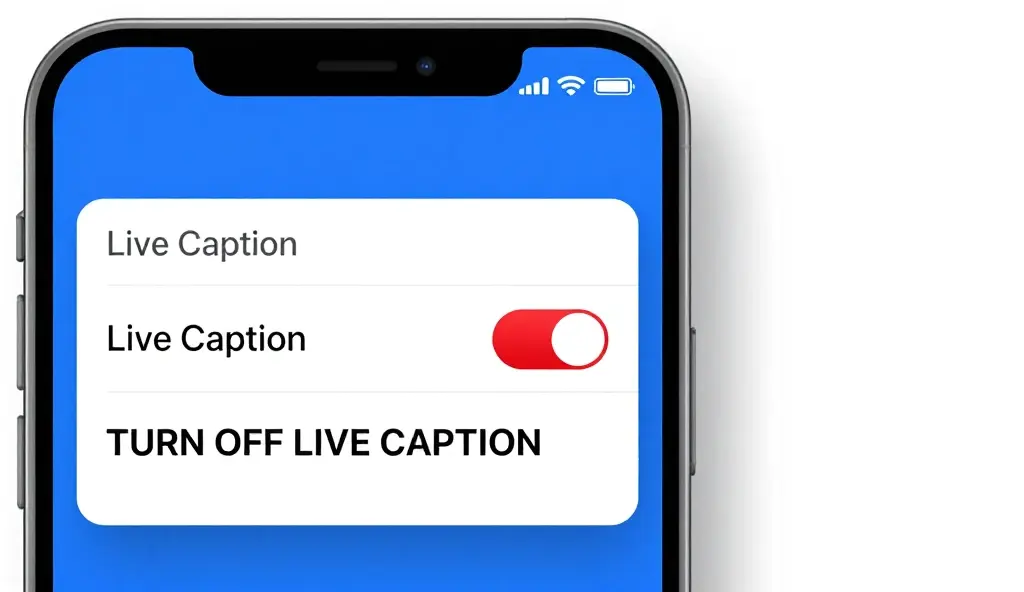
If you want to turn off live captions and remove the text box from your screen, you can do it in a few easy steps.
In 2026, many devices show captions on the screen while using them.
But sometimes these captions can be annoying when you are on a call or trying to listen carefully.
No matter if you use an Android phone, an iPhone, or a computer, you can turn this feature off on all main devices easily.
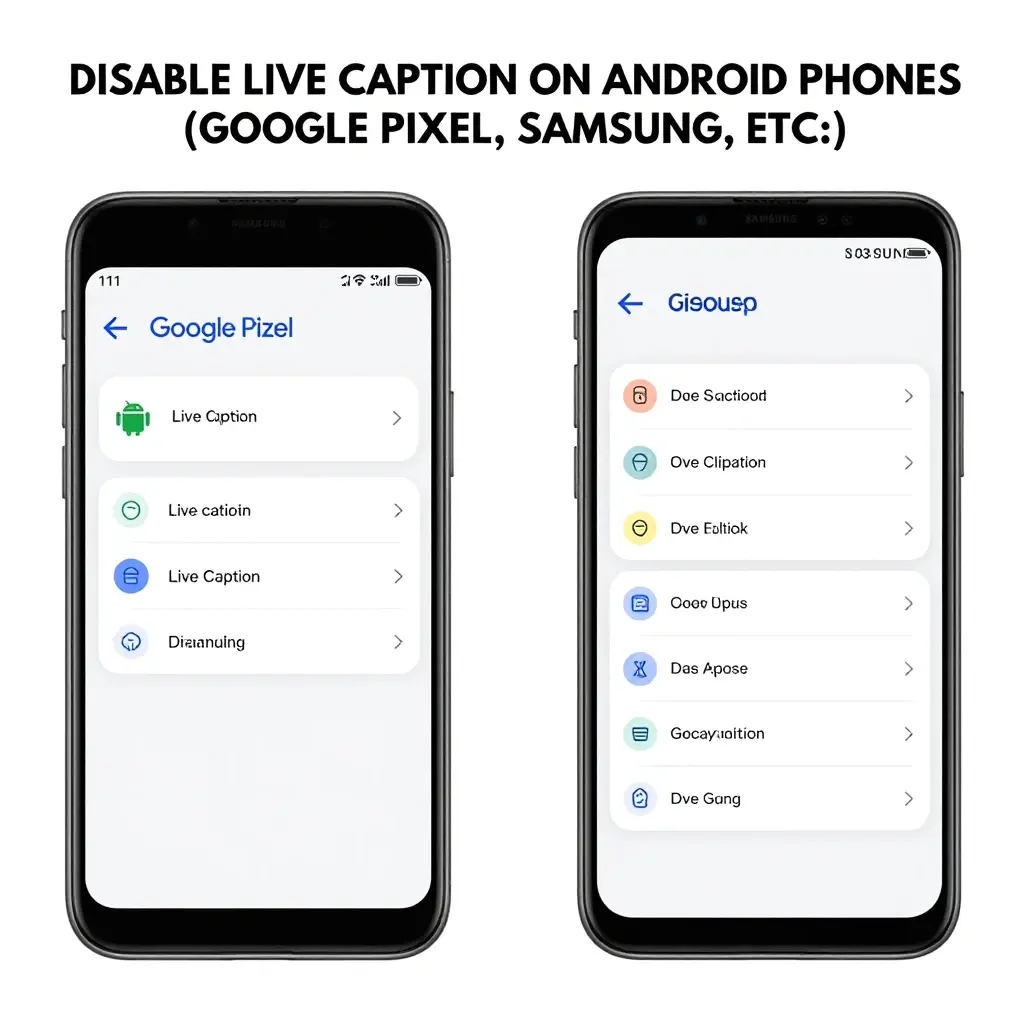
Disable Live Caption on Android Phones (Google Pixel, Samsung, etc.)
- Press either the volume up or volume down button on the side of your phone 📱
- Look for the small “Live Caption” icon (a tiny text box) that appears under the volume slider ⏹️
- Tap the icon once to toggle the captions off instantly 📴
- To disable it permanently, go to your “Settings” app ⚙️
- Tap on “Accessibility” ♿
- Select “Live Caption” from the menu list 📝
- Switch the “Use Live Caption” toggle to the OFF position ⚪
- You can also search for “Live Caption” in your settings search bar 🔍
- Turn off “Live Caption in Volume Control” to hide the shortcut icon 🔘
- If captions appear only on calls, check the “Captions in Calls” setting 📞
- Restart your device if the caption box remains visible after turning it off 🔄
- Check “Sound” settings if you don’t see it in Accessibility 🔊
- Note: On Samsung devices, it may be under “Hearing Enhancements” 👂
- Ensure “Automatic transcription” is disabled in all sub-menus 🚫
- Add a “Live Caption” tile to your Quick Settings for faster future access 🏗️
How to Turn Off Live Caption in Google Chrome
- Open the Google Chrome browser on your desktop or laptop 💻
- Click the three vertical dots (Menu) in the top-right corner ⋮
- Click on “Settings” ⚙️
- Select “Accessibility” from the left-hand sidebar ♿
- Locate the “Live Caption” toggle at the top of the page ⏹️
- Switch the toggle to the OFF position ⚪
- Alternatively, look for the “Media Control” icon (music note) next to your profile 🎵
- Click the icon while a video is playing 🎶
- Toggle “Live Caption” off within that specific media overlay 🎚️
- Chrome will stop downloading speech recognition files once this is disabled 📉
- If on a Chromebook, check the system-wide Accessibility tray in the bottom right ⌨️
- Restart Chrome to clear any active captioning cache 🔄
- Check your extensions to ensure no 3rd-party transcription tools are running 🧩
- Remember that this setting syncs across devices where you are logged in 🌐
Turning Off Live Captions on iPhone and iPad (iOS/iPadOS)
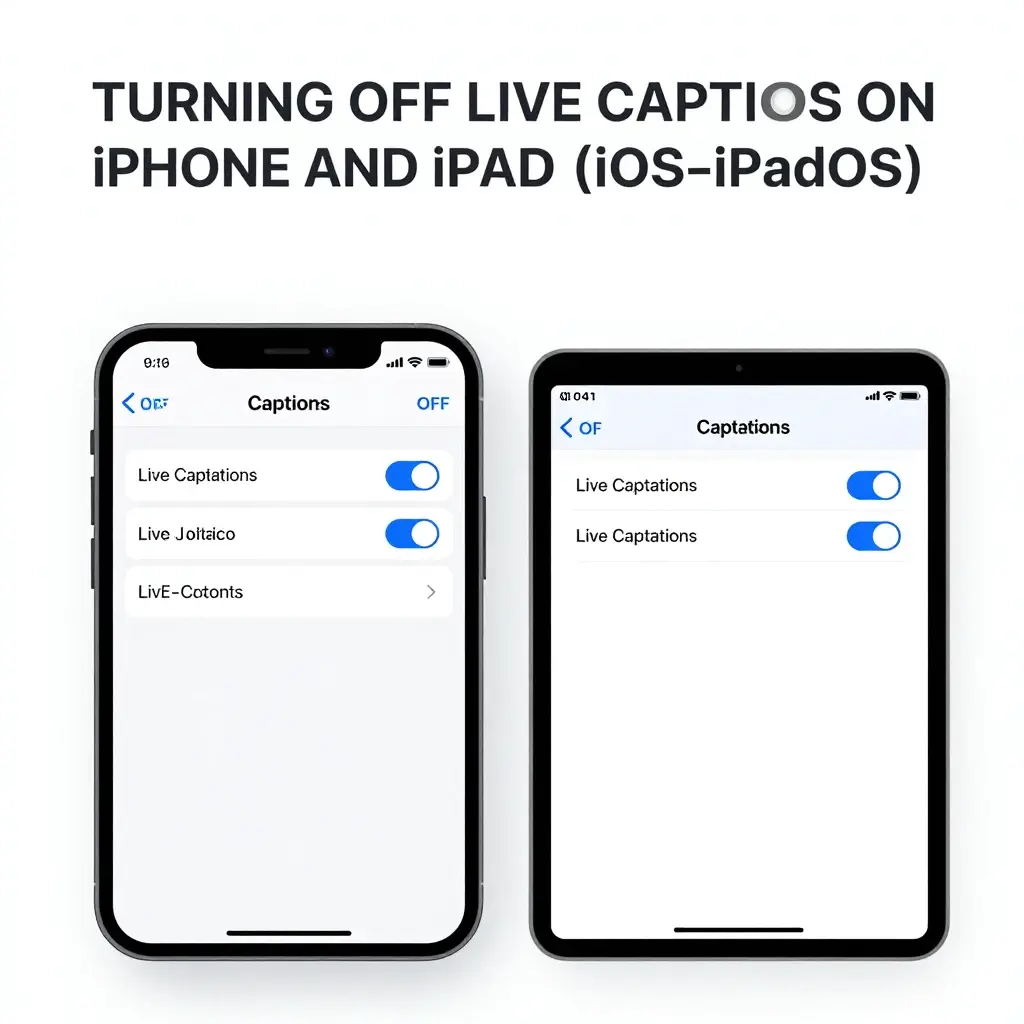
- Open the “Settings” app on your device ⚙️
- Navigate to the “Accessibility” section ♿
- Scroll down to the “Hearing” category and tap “Live Captions” 📝
- Toggle the main “Live Captions” switch to OFF ⚪
- If a floating “Live Captions” button is on your screen, tap it to expand 🔘
- Select “Hide” or “Turn Off” from the on-screen options 🙈
- Go to “Accessibility Shortcut” at the bottom of the menu to remove it from the side-button click 🛠️
- Deselect “Live Captions” so it doesn’t accidentally trigger ⏹️
- Check if “Live Captions in FaceTime” is enabled separately in the same menu 📹
- Ask Siri: “Hey Siri, turn off Live Captions” for a hands-free fix 🗣️
- Check “Subtitles & Captioning” if regular video captions are still appearing 🎬
- On iPad, the menu is found in the sidebar under Accessibility 📱
- Disable “Show Transcription” in your Podcast app settings if the issue is app-specific 🎵
- Look for any active “Accessibility” toggles in your Control Center 🎛️
- Update to the latest iOS version if the toggle is greyed out 🆙
Disabling Live Captions on Windows 11 and Windows 12
- Open the “Settings” app via the Start menu ⚙️
- Click on “Accessibility” in the left navigation pane ♿
- Scroll down to the “Captions” section under the Hearing category 📝
- Find the “Live captions” toggle and switch it to OFF ⚪
- Use the shortcut Win + Ctrl + L to quickly toggle the feature off ⌨️
- If the caption bar is at the top of your screen, click the “Settings” gear icon on it ⚙️
- Choose “Turn off live captions” from the overlay menu ❌
- Check the “Quick Settings” menu (Win + A) to see if the Live Captions tile is active 🟦
- Uncheck the “Live captions” box in the Quick Settings edit menu if you want it gone for good 🛠️
- Ensure “Include microphone audio” is disabled to stop it from transcribing your voice 🎤
- If using Microsoft Teams, turn off captions within the specific meeting “More” menu 👥
- Check “Privacy & Security” to revoke speech permissions if the feature persists 🛡️
- Remove Live Captions from your “Startup Apps” in Task Manager 🚀
- Note: On newer AI-PCs, these captions run locally on the NPU 🤖
How to Turn Off Captions in Social Media Apps (TikTok & Instagram)

- TikTok: Tap the caption box on the video you are watching 📽️
- Select “Hide Captions” to remove them for that session 🙈
- For a permanent fix, go to Profile -> Settings and Privacy -> Accessibility 👤
- Toggle “Always show captions” to the OFF position ⚪
- Instagram: Tap the three dots on a Reel or Video ⋮
- Select “Manage Captions” or “Captions” 📝
- Toggle the “Captions” switch to OFF 📴
- YouTube: Tap the “CC” icon in the top corner of the video player 📺
- Go to Settings -> Captions to disable “Always show” for your account 🎥
- Check your YouTube account preferences for “Auto-generated captions” 🔴
- Facebook: Go to Settings & Privacy -> Accessibility -> Captions 👥
- Turn off “Always Show Captions” and “Show Video Transcriptions” 🚫
- Refresh the app to ensure the text boxes disappear 🔄
Quick Fixes for Common Live Caption Issues
- Check for a physical “CC” button on your TV or monitor remote 📺
- Look for 3rd-party browser extensions that force subtitles 🧩
- Check “Ease of Access” settings if you are on an older OS 🏛️
- Ensure your “Speech-to-Text” engine isn’t running as a background process 🎙️
- Verify that streaming service settings (Netflix/Hulu) aren’t overriding the system 🎬
- Disable “Overlay” permissions for apps that create text boxes on top of others 🏗️
- Clear browser “Site Settings” if captions only appear on one specific website 🌐
- Reset “Accessibility Settings” to default if the toggle won’t work 🔄
- Unplug external mics that may be triggering voice detection 🎤
- Update your “Sound Driver” to fix communication between software and hardware 📢
- Close any “Translation” or “Dictation” apps in your system tray 🏮
- Restart the specific app (Spotify, Zoom, etc.) where the text is appearing 🚀
FAQs:
1: Why does Live Caption keep turning itself back on?
A: This can happen when a special phone setting is turned on.
Sometimes, you can turn it on by pressing both volume buttons together. You can also turn it on by pressing the power button three times. You can go to your phone settings and turn this option off if you don’t need it.
2: Is Live Caption different from Closed Captions (CC)?
A: Closed captions are written by the person who made the video.
Live caption shows words in real time on your device.
It can show words for any sound, even phone calls.
3: Does disabling Live Caption save battery?
A: Turning on Live Caption uses your device’s CPU or NPU to listen and change sound into text in real time. This uses a lot of battery power. If you turn it off, your battery will last longer.
4: Can I turn off Live Captions just for my phone calls?
A: Yes. In the “Live Caption” settings on Android and iOS, there is a specific toggle for “Captions in Calls.” You can keep media captions on while turning call captions off.
5: Why is there no “X” to close the caption box?
A: The caption box is a small box on the screen. It is part of the phone system. You can remove it by dragging it down to “Dismiss.” You can also use the volume button method to turn it off.
6: Can I disable Live Captions for only one app?
A: Most settings in phones are either fully on or fully off. But apps like YouTube and TikTok have their own caption settings inside the app. If captions are not working, you should check those app settings because the problem may be only in that app.
Conclusion:
Learning how to turn off live captions is a good way to make your screen clean and easy to use. It helps you watch videos without extra words on the screen.
This feature is helpful for some people, but not everyone needs it all the time. You can turn it on or off whenever you want.
Just follow the simple steps on your device. Also check your settings so it does not turn on again by mistake.

His simple yet powerful writing inspires captions that are short, strong, and impactful.